08.18.15: The OTG device (very cheap on eBay) allows you to move files (pics or any other file) easily from your camera, or any other device that uses a sdcard, to or from your phone.
This is very useful when on a trip and wanting to send pics and videos to someone on the Internet.
I like to send selected pics when I locate a free Wi-Fi access (hotel, coffee shop,etc). Can't do this from my camera.
I can now, with the OTG device, move items from my camera's sdcard to my phone. Then I can send via the internet. This also allows me to free up space on the Camera's sdcard for more pictures ... if i have space on the phone internal storage or addn micro sdcard (not available on iPhones).
I expect future DSLR cameras to be Wi-Fi enabled. But until then...
Did you know there are 512gb sdcards now?
I haven't tested them in a camera or phone (or OTG device) yet but they will be useful storage devices for times when you are taking a lot of pics or have large data files to transport.
More on this, as I acquire and test these large and cheap sdcards and micro cards.
Tuesday, August 18, 2015
Friday, April 24, 2015
Rogers modem connection
15.04.24: Is your Rogers modem plugged into a surge protector?
If so, you might consider plugging it directly into the wall. Same for a router, if you are using one in addition to the Rogers modem/router.
In a tech forum I was visiting today, it was suggested using a surge protector actually reduces the effectiveness of the Rogers device.
As well, you may incur a service charge, if you request Rogers come to your home due to (what you consider) a faulty Rogers modem.
I use the Rogers SMCD3GN modem and attach my trusted Belkin router for better speed than the modem alone.
Some users have the Rogers CGN2 or CGN3 modem/router combination.
If your Rogers device works well for you (anywhere in your residence), read no further.
If your speed is slower than you were promised by Rogers, or there is some other Internet related reason to call Rogers, bypass the surge protection before the service rep arrives ... and don't use it in future.
I removed my surge protector today and improved my throughput.
If so, you might consider plugging it directly into the wall. Same for a router, if you are using one in addition to the Rogers modem/router.
In a tech forum I was visiting today, it was suggested using a surge protector actually reduces the effectiveness of the Rogers device.
As well, you may incur a service charge, if you request Rogers come to your home due to (what you consider) a faulty Rogers modem.
I use the Rogers SMCD3GN modem and attach my trusted Belkin router for better speed than the modem alone.
Some users have the Rogers CGN2 or CGN3 modem/router combination.
If your Rogers device works well for you (anywhere in your residence), read no further.
If your speed is slower than you were promised by Rogers, or there is some other Internet related reason to call Rogers, bypass the surge protection before the service rep arrives ... and don't use it in future.
I removed my surge protector today and improved my throughput.
Friday, April 3, 2015
PowerStream - Advantage Power Pricing
15.04.02: PowerStream began a pilot program a while ago and it has stopped taking participants a few days ago.
Via Twitter, I became aware of it a couple of weeks ago and signed up (even though it indicated peaksaver PLUS users couldn't participate).
This 6 month pilot program, Advantage Power Pricing, was installed yesterday.
How it works - "Advantage Power Pricing offers a price lower than the lowest time-of-use price for off-peak periods and a variable price during the peak period (weekdays 3-9pm).
The peak price will vary with the demand for electricity in Ontario so that you'll pay either the High, Medium or Low rate for electricity during the peak period that day.
You'll receive notification the day before of which price will be paid for consumption on peak the following day.
You'll save money by paying a new low price for electricity over 80% of the time."
The participants guidance information - During the Summer Phase, from May 1 to October 31, 2015, on weekdays from 3pm to 9pm, you will beable to track your savings using three variable pricing tiers (approx $0.10 for low, $0.20 for medium, or $0.40 for high per kWh), which are comparable to or higher than current on-peak prices under TOU.
These price periods will be set at low, medium or high and sent to you the day before (text or email) it is implemented, based on the expected provincial demand for electricity, with the highest prices on days when demand is also highest, such as extreme hot weather.
Reducing your consumption during on-peak times by shifting to off-peak times will help you better manage your electricity costs.
Throughout the remainder of the week, trial participants will be charged off-peak rates of approximately $0.05 ... much lower than the current off-peak TOU price.
The additional benefits are:
This 6 month pilot program, Advantage Power Pricing, was installed yesterday.
How it works - "Advantage Power Pricing offers a price lower than the lowest time-of-use price for off-peak periods and a variable price during the peak period (weekdays 3-9pm).
The peak price will vary with the demand for electricity in Ontario so that you'll pay either the High, Medium or Low rate for electricity during the peak period that day.
You'll receive notification the day before of which price will be paid for consumption on peak the following day.
You'll save money by paying a new low price for electricity over 80% of the time."
The participants guidance information - During the Summer Phase, from May 1 to October 31, 2015, on weekdays from 3pm to 9pm, you will beable to track your savings using three variable pricing tiers (approx $0.10 for low, $0.20 for medium, or $0.40 for high per kWh), which are comparable to or higher than current on-peak prices under TOU.
These price periods will be set at low, medium or high and sent to you the day before (text or email) it is implemented, based on the expected provincial demand for electricity, with the highest prices on days when demand is also highest, such as extreme hot weather.
Reducing your consumption during on-peak times by shifting to off-peak times will help you better manage your electricity costs.
Throughout the remainder of the week, trial participants will be charged off-peak rates of approximately $0.05 ... much lower than the current off-peak TOU price.
The additional benefits are:- Reducing electricity costs by up to $300 per year
- Knowing (a day before) when the peak price will be highest
- A free illuminated smart (wifi) thermostat
- Automatic adjustment of prices and preferences via the free ($250 retail) smart Energate thermostat (doubl-click to enlarge pic at top)
- Smart phone app and web site to manage energy usage from anywhere
- Paying a lower price for electricity 80% of the time
- Track (and show) saving over 30 days (see above pic)
Same as with peaksaver PLUS, Ontario may alter summer settings when power supply is limited ... but will warn users well in advance. To my recollection, this hasn't happened since joining the peaksaver PLUS pgm a few years ago.
I will add to this blog item, as I become more experienced with the thermostat and web/smartphone apps.
Saturday, February 21, 2015
Android Phone - transfer pics, songs and data to PC
02.21.15: Android phones have wi-fi apps for wireless transfer of data to/from phone/PC.
Here is a recap of the three approaches:
Using a micro SDcard (simplest, if your phone has one)
1. Turn off your phone and take out the microSD card.
2. Put the micro SDcard in the SDcard holder and place in the PC slot and use Microsoft Explorer to move the data to your PC.
Using the phone's USB cable (fastest approach)
1. When you attach the USB cable to phone and PC, the first pic appears in Settings, to show your PC can now see your phone.
2. Click on the "Connected as a media device" and the second screen appears where you need to select MTP instead of PTP (to ensure all phone files are visible).
3. As per the third picture, using your PC File Explorer, the phone's internal storage will appear on your PC as an "phone" drive.
If you also have a microSD card installed in your phone, this will show up as "card" drive.
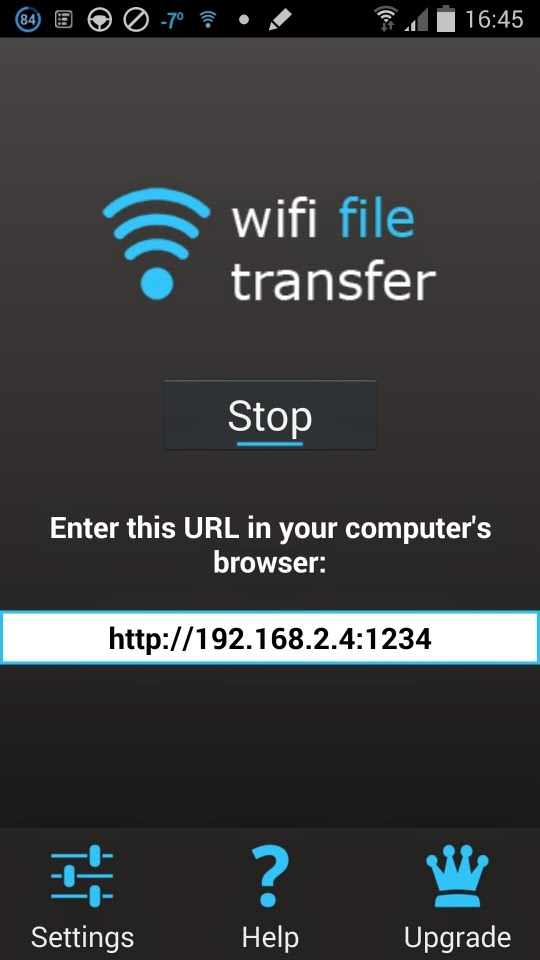
2. To wireless connect the phone to the PC, start the app and then press the "start" button (see picture left). Then enter the address indicated into the address bar on the PC.
3. A browser screen will appear (pictured on left) with instructions on how to transfer to/from the phone.
Problems with using an SDcard with Android 4.4.2 (or higher)
Google has decided the user cannot manage an SDcard effectively and has taken over control of its access.
The user is not able to select the SDcard for downloads or any data placement by an app.
So, moving data between the phone and the SDcard is really restricted.
You are able to move data using a file manager Android app (10 best file manager apps). I find File Manager HD to be very good.
Using the SDcard as backup is very effective use of the SDcard ... if you don't lose your phone.
I also use the SDcard to backup important PC files or as a transport mechanism for sharing files with others.
Here is a recap of the three approaches:
Using a micro SDcard (simplest, if your phone has one)
1. Turn off your phone and take out the microSD card.
2. Put the micro SDcard in the SDcard holder and place in the PC slot and use Microsoft Explorer to move the data to your PC.
Using the phone's USB cable (fastest approach)
1. When you attach the USB cable to phone and PC, the first pic appears in Settings, to show your PC can now see your phone.
2. Click on the "Connected as a media device" and the second screen appears where you need to select MTP instead of PTP (to ensure all phone files are visible).
3. As per the third picture, using your PC File Explorer, the phone's internal storage will appear on your PC as an "phone" drive.
If you also have a microSD card installed in your phone, this will show up as "card" drive.
4. You can now drag and drop files directly to/from your phone/PC. You can also create or delete files and folders on your phone.
5. When you have finished moving files, unplug the USB cable.
Using a wi-fi app for wireless transfer (slowest)
2. To wireless connect the phone to the PC, start the app and then press the "start" button (see picture left). Then enter the address indicated into the address bar on the PC.3. A browser screen will appear (pictured on left) with instructions on how to transfer to/from the phone.
d. Unfortunately, only the phone's internal storage area can be accessed. An attached SDcard cannot be viewed.
4. The connection will remain until you click the app's "stop" button.
Problems with using an SDcard with Android 4.4.2 (or higher)
Google has decided the user cannot manage an SDcard effectively and has taken over control of its access.
The user is not able to select the SDcard for downloads or any data placement by an app.
So, moving data between the phone and the SDcard is really restricted.
You are able to move data using a file manager Android app (10 best file manager apps). I find File Manager HD to be very good.
Using the SDcard as backup is very effective use of the SDcard ... if you don't lose your phone.
I also use the SDcard to backup important PC files or as a transport mechanism for sharing files with others.
Android Phone - Managing Data Usage
15.04.24: For those who have an Android cell phone.
Rogers has various data usage plans. Mine is 1gb. To enlarge this total is quite expensive at Rogers. Data usage occurs when Wi-Fi is not connected.
If you go to Settings - Connections - Data Usage, you can see the amount of data being used during your billing cycle (total and for each app).
Rogers has various data usage plans. Mine is 1gb. To enlarge this total is quite expensive at Rogers. Data usage occurs when Wi-Fi is not connected.
In the Data Usage section, at any time during the billing cycle, you can:
1.Turn off data for your phone (no internet connection without wifi)
2. Turn off data for specific apps
3. Set a phone limit (and enable a warning before the limit) before phone data usage is disabled.
My billing date is the 7th of the month.
The first pic is my data usage as of the 24th of this month.
You may notice I have checked Mobile Data and Set mobile data limit. This will ensure I am advised when data usage reaches the monthly warning limit and the total monthly limit.
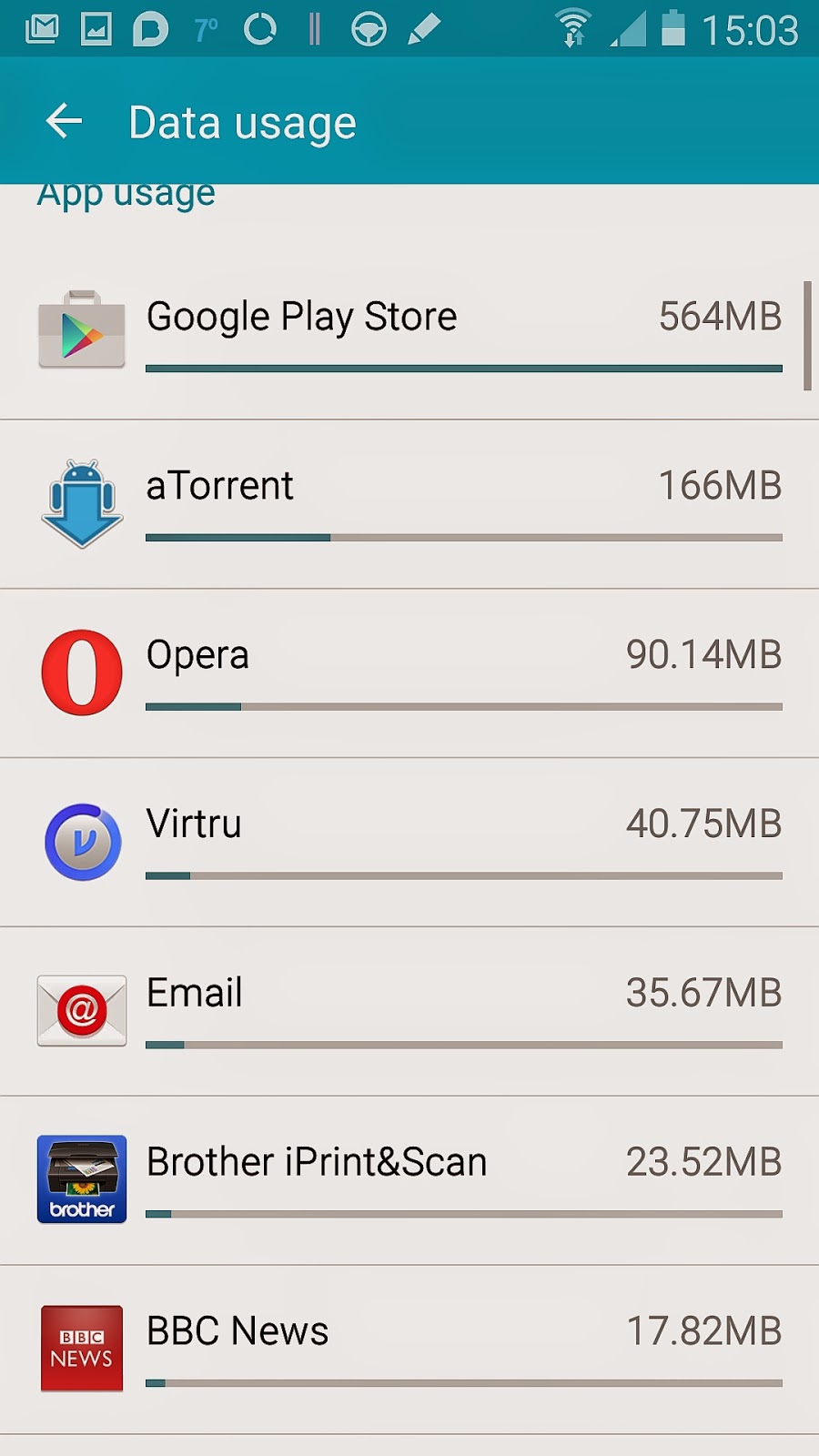
The second pic shows what apps are using the most data. As you can see, i inadvertently updated my apps without wifi connection (wifi would have used my Internet unlimited data usage plan).
If you click on an app, another window opens and allows to to Restrict background data (disable data usage when wifi not available).
I will now change the setting for Google Play Store to restrict background data. This will mean no apps updates will occur unless wifi is connected.
You may notice I have checked Mobile Data and Set mobile data limit. This will ensure I am advised when data usage reaches the monthly warning limit and the total monthly limit.
The second pic shows what apps are using the most data. As you can see, i inadvertently updated my apps without wifi connection (wifi would have used my Internet unlimited data usage plan).If you click on an app, another window opens and allows to to Restrict background data (disable data usage when wifi not available).
I will now change the setting for Google Play Store to restrict background data. This will mean no apps updates will occur unless wifi is connected.
With these controls, you are able to manage your costs and determine where the problems occur ... and not be forced into a more expensive Rogers smartphone monthly plan.
Android Phone - Voice Control is helpful
02.21.15: This tip is for Android phone users only.
Have you tried Voice Control?
It is very helpful for hand free use of the phone.
There are four optional areas to be voice controlled:
1. Incoming Calls - "answer" or "reject"
2. Alarm - "stop" or "snooze"
3. Camera - "capture" or "shoot"
4. Music - "next", "previous", "play", "pause", "volume up" and "volume down"
I find this very useful when not holding my phone.
Camera use this way enables easier picture taking, especially when using one hand.
I play music while doing carpentry on my children's homes. Being able to manage the play without having to pick up the phone is very helpful.
The enable voice control, go to Settings and then Controls and then enable Voice Control. Clicking on the Voice Control words enables you to see the screen pictured here, to manage which features to enable.
Android Phone - Swype - A very useful app
02.21.15 - This tip is for Android phone users only.
Have you tried the Swype app instead of tapping the letters for texts or emails?
I have been using it for a while. It is the second android app I have purchased.
Instead of tapping, just drag any finger from letter to letter.
I am a quite fast one finger key board user but this is a lot faster and accurate.
It really does work for any keyboard operations.
Have you tried the Swype app instead of tapping the letters for texts or emails?
I have been using it for a while. It is the second android app I have purchased.
Instead of tapping, just drag any finger from letter to letter.
I am a quite fast one finger key board user but this is a lot faster and accurate.
It really does work for any keyboard operations.
Subscribe to:
Posts (Atom)