Saturday, February 21, 2015

Android Phone - Managing Data Usage

15.04.24: For those who have an Android cell phone.

Rogers has various data usage plans. Mine is 1gb. To enlarge this total is quite expensive at RogersData usage occurs when Wi-Fi is not connected.

If you go to Settings - Connections - Data Usage, you can see the amount of data being used during your billing cycle (total and for each app).

In the Data Usage section, at any time during the billing cycle, you can:
1.Turn off data for your phone (no internet connection without wifi)
2. Turn off data for specific apps 
3. Set a phone limit (and enable a warning before the limit) before phone data usage is disabled.

My billing date is the 7th of the month.
The first pic is my data usage as of the 24th of this month.
You may notice I have checked Mobile Data and Set mobile data limit. This will ensure I am advised when data usage reaches the monthly warning limit and the total monthly limit.
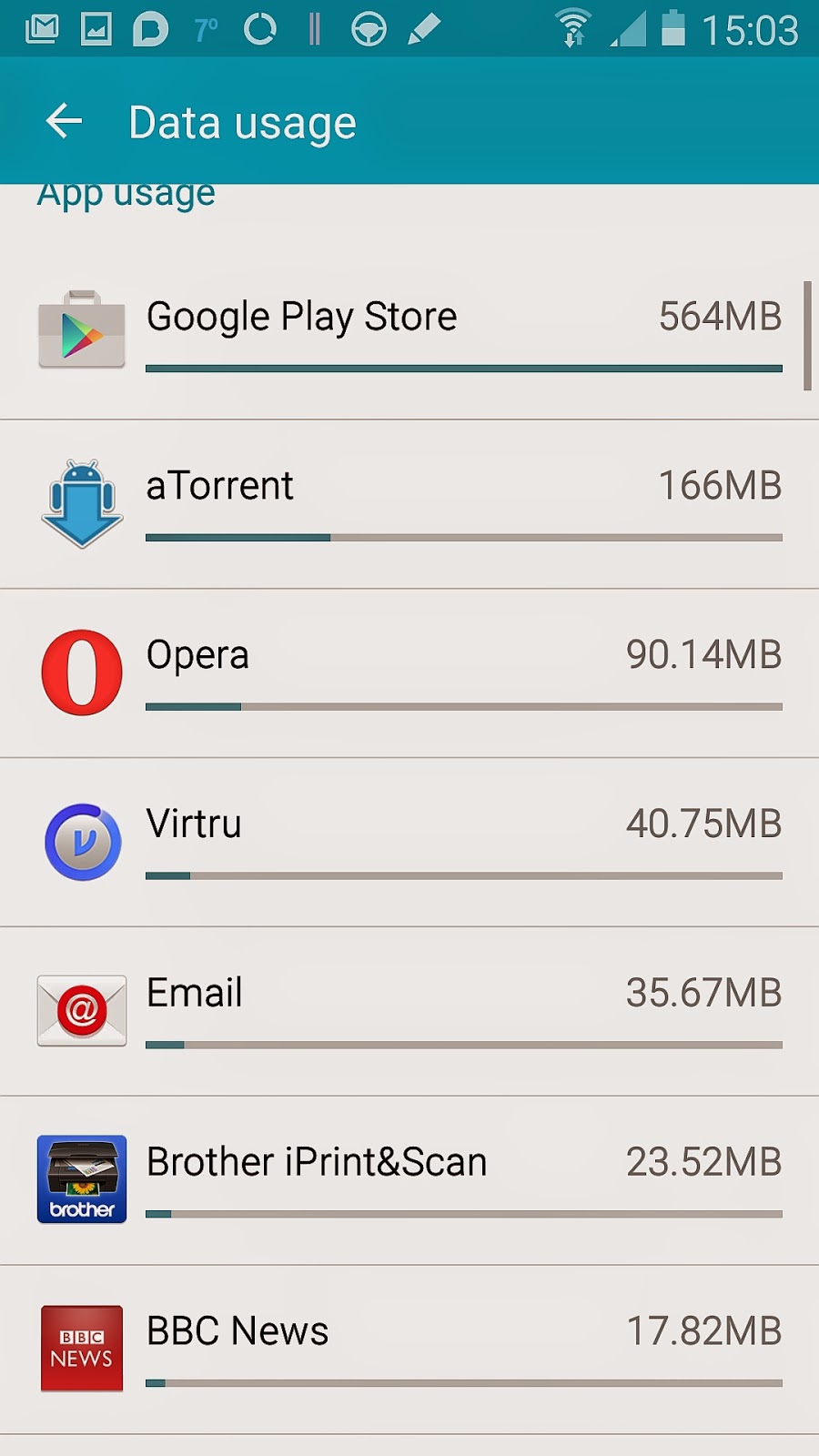

The second pic shows what apps are using the most data. As you can see, i inadvertently updated my apps without wifi connection (wifi would have used my Internet unlimited data usage plan).

If you click on an app, another window opens and allows to to Restrict background data (disable data usage when wifi not available). 

I will now change the setting for Google Play Store to restrict background data. This will mean no apps updates will occur unless wifi is connected.

With these controls, you are able to manage your costs and determine where the problems occur ... and not be forced into a more expensive Rogers smartphone monthly plan.

Android Phone - Voice Control is helpful

02.21.15: This tip is for Android phone users only.

Have you tried Voice Control?

It is very helpful for hand free use of the phone.

There are four optional areas to be voice controlled:
1. Incoming Calls - "answer" or "reject"
2. Alarm - "stop" or "snooze"
3. Camera - "capture" or "shoot"
4. Music - "next", "previous", "play", "pause", "volume up" and "volume down"

I find this very useful when not holding my phone. 
Camera use this way enables easier picture taking, especially when using one hand.
I play music while doing carpentry on my children's homes. Being able to manage the play without having to pick up the phone is very helpful.

The enable voice control, go to Settings and then Controls and then enable Voice Control. Clicking on the Voice Control words enables you to see the screen pictured here, to manage which features to enable. 

Android Phone - Swype - A very useful app

02.21.15 - This tip is for Android phone users only.


Have you tried the Swype app instead of tapping the letters for texts or emails?

I have been using it for a while. It is the second android app I have purchased.

Instead of tapping, just drag any finger from letter to letter.

I am a quite fast one finger key board user but this is a lot faster and accurate.

It really does work for any keyboard operations.

Android Phone - main screen fixed icons

02.21.15 This tip is for Android phones only.

Have you not been able to change one of the five fixed app icons on the bottom of the main screen?

They cannot be held-dragged like other icons.

1. click the apps icon (bottom right app) to take you to your inventory of apps.
2. click the menu button (bottom left).
3. select "edit"
4. hold the icon you want to remove and then drag it to the upper screen.
5. hold the icon you want to include and drag it

Sunday, September 21, 2014

Android Phone - wi-fi connect to a printer

09.21.14: I am noticing the smartphone is taking over from the PC in many ways.
My PC hard drive broke a few days ago and it has not impacted me, as I can use my smartphone to do most things I used to depend on my PC for.

I am not concerned with lost data, as all my files are duplicated on a USB hard drive I can attach to any PC. 
I Found a good replacement hard drive (under $75 total) at Tiger Direct and restored my operating system from DVDs.

During the time I couldn't access my PC, I needed to print documents I received via email..
One of the many things a smartphone can do is connect to your printer the same way your PC wi-fi connects.

The Android Play Store has printer apps for most manufacturers.

We have a Brother printer (ink is least expensive for Brother printers) and there is a printer app iPrint and Scan that easily prints and scans via my smartphone.


The print functions allow for printing anything from your smartphone such as emails, files or documents, pictures, etc.

While it is no easier than printing from your PC, it may be more convenient at times.

I prefer it, as it means I don't need to turn on my PC just to print a document.


The scan function allows you to scan on your printer and place the result on your smartphone.

It could also be done via your PC and sending yourself an email.

Scanning can also be done via android scanner apps but taking a picture is quicker. However, adjusting a picture may be more cumbersome than adjusting an image produced by the scanner.


Let me know if you use a particularly useful android app and I will include it in my blog.

Monday, March 3, 2014

PC taking long to start up?

14.03.03: Is your PC taking longer to start up? This assumes you turn it off to conserve energy each time not using...

If it taking longer, there is a way to reduce this time by using a Startup Mgr app to delay the start of specific apps that start automatically.

For the non-techies out there, there is a free app (Advanced SystemCare) that has a lot of easy-to-use very helpful apps.

Here is how to use the Startup Manager.


Select the Toolbox on the main screen.


Select Startup Manager, under Optimize.


Look at each item here and, if you know one that doesn't need to start when you turn your PC on, click on  the down-carrot beside Enable to Delay or Disable it.
if you do either, the item will appear in a separate list at the bottom of the screen. You can easily change the action at any time. 


This pic lists some items I have delayed at startup.


If you would like some help deciding which items to delay, let me know.

Friday, February 7, 2014

Android Phone - How to Encrypt your phone

02.17.14: It is not worth the effort on a smartphone.
Luckily, I had only encrypted the main phone and could easily (20 mins) decrypt.

My problems with using encryption were slow response and extra password effort.

Just be sure to use a very strong password and don't store anything on your phone you haven't backed up.

p.s. never store anything on your phone or computer you wouldn't want shown on Facebook. 

02.06.14: Ever wondered if you should encrypt your phone to ensure absolute confidentiality?

I have considered it for some time, especially with the Edward Snowden leak concerning the NSA breaking into worldwide Internet systems and scooping up metadata (only metadata, right?).

So I decided to hide everything I could think of, just to make it more difficult for gov'ts to snoop!

Some recent legal rulings have suggested that encryption can protect against warantless searches ... not that any gov't official would want to search my phone ... but in case there is a mistaken identity...
As strange as it may sound,
Canadian court has ruled that phones can be searched without a warrant as long as they are not encrypted.
Surprise, a California Supreme Court has also ruled that police officers can lawfully search YOUR cell phone without a warrant if it’s taken from you during arrest – but they would require a warrant if it was encrypted. 

If you would like to do it, here are the very simple steps.

My smartphone is slightly slower after encryption but not a problem.

Warning: You will need to factory reset your phone to undo the encryption.

The battery must be at least 80% before the encryption will start. 
Also, it could take up to an hour to complete the encryption so you should have your phone plugged in during the process.
Also, you must be using Password or PIN or the encryption will not start.

Warning: Whatever screen lock type you choose will be used for starting the device and getting past your lock screen. Be sure to use a complex password or PIN but ensure it is easy to enter.


Figure A


Select a strong password. Otherwise it defeats the purpose of encryption all together. 

Now you are ready to start the encryption.


  1. Open the app drawer
  2. Tap Settings 
  3. Tap Security
  4. Tap Encrypt device


Figure C

Let me know if you have any problem encrypting your smartphone.