10.29.11: In the Toronto Star today.
Samsung is giving Apple a run for sales in smartphones.
It is the war between the operating systems (Apple vs Google) and Android is clearly gaining much ground ... with the consumer being the winner.
I have an iPhone but will seriously review the many Android models available when my current contract is up.
This is partly due to my preference for Google over Microsoft or Apple (but held at bay due to many less apps available) and now because my wife has a Koodo LG Android smartphone and I am impressed with what she gets for less than half my monthly price.
Saturday, October 29, 2011
RIM giving in to India
10.29.11: In the Toronto Star today.
Is it surprising RIM is compromising its basic business plan to ensure access to this very large market?
India and China will dominate economics in the future.
Companies will do 'anything' to ensure access. Principles and ideals don't exist in commerce.
In my opinion:
- RIM is giving just enough ... but will be pushed to give more.
- RIM is certainly doing well in Indonesia and , if they continue to offer a price beater product in these less developed countries, the stock may start to rise again in the short-term ... even without further innovation.
Is it surprising RIM is compromising its basic business plan to ensure access to this very large market?
India and China will dominate economics in the future.
Companies will do 'anything' to ensure access. Principles and ideals don't exist in commerce.
In my opinion:
- RIM is giving just enough ... but will be pushed to give more.
- RIM is certainly doing well in Indonesia and , if they continue to offer a price beater product in these less developed countries, the stock may start to rise again in the short-term ... even without further innovation.
Wednesday, October 26, 2011
Google as default search engine in Chrome

10.25.11: Problem keeping Google as search engine in Chrome
This is unusual as it has not been detected by spyware tools to-date.
I use the Google Chrome browser for various reasons (faster, retains keyed information, ease-of-use, etc).
One very useful feature is using the address bar for searching (and the auto-completion/loading of searches).
I am able to easily default the search engine to Google (by far the best search engine in the world).
By the way, it is very difficult to alter the search engine to Google in Microsoft's Internet Explorer browser.
After setting it as the default, I was surprised to see Yahoo appear as my search engine in Chrome.
Upon doing some investigation, I discovered a spyware item not yet picked up by Malwarebytes (very surprising, as it has never failed me before).
Enlarge the pic (left-click) to see where to find the SPIGOT malware folder and delete it.
Monday, October 3, 2011
Windows XP - backup and restore point
17.12.15: As we all know, there is a small cable we can connect from our smartphone to our computer or wall outlet. This cable is used to recharge the smartphone battery and transfer data to/from the computer.
Most of us take pictures on our phone and, at some point, want to move them (and other items) to our computer.
If your phone has a micro SDcard, you can take the card out and (using an SDcard port) place it in the computer. This is a faster way to transfer data than using a cable or Bluetooth.
For those smartphones without micro SDcard slots, you need to plug a USB cable into the phone and computer to move data.
1. the computer USB port (see pic)
2. the USB cable adapter that connects to the computer
3. the USB cable
4. speed of data transfer from/to computer/smartphone via the USB cable
1. Computer USB Ports:
Older computers have USB 2.0 technology with Type-A ports with black insert.Newer computers have USB 3.0 with Type-A port (with an SS indicating USB 3.0).
The newest computers have USB 3.1 (with Type-C port) and USB 3.0 ports.
The USB 2.0 and 3.0 form factors are the same (Type-A), to allow both types of USB to be used.
As you can see, the Type-C port is smaller.
My laptop has four USB 3.0 ports. The "SS" (SuperSpeed) beside them indicates USB 3.0.This allows me to use a USB 3.0 cable instead of the older (slower) USB 2.0 cable.
2. USB Cable Computer Adapter:
The newer cables, you can buy (eBay item for less than $4 delivered to your door), are USB 3.0. They look like USB 2.0 adapters but have a blue insert. The older computers only allow a rectangular USB 2.0 Type-A adapter with a white insert.
The newest computers allow a Type-A port with blue insert (USB 3.0) and a Type-C adapter (USB 3.1).

This is a cable with Type-C adapters (USB 3.1) at both ends - reversible.

This is a cable with Type-C adapters (USB 3.1) at both ends - reversible.
Eventually, it is expected all computer and smartphone manufacturers will use this approach. But these cables are not of any use for the foreseeable future.
Here are the phones already using the Type-C smartphone adapter. So, for instance, if you have one of these phones and your computer has a Type-C port, you can use a reversible USB cable ... but you can't take advantage of the USB 3.1 speed because the smartphones and computers do not have fast enough write speeds.
3. The USB Cable:
One cable aspect is battery charging. The other aspect is data transfer speed. All smartphone cables will charge your phone from the wall (with a wall connector) or the computer.
Data transfer is separate and some basic smartphone USB 2.0 cables won't work.
The newer cables are USB 3.0, if they have a Type-A adapter with a blue insert and the wire is braided (more wires than USB 2.0 cables).
Some newest cables are USB 3.1, if they have a Type-C computer end adapter and are braided.
Beware of the term "reversible" cable as it may only refer to the smartphone end adapter being used either up or down.
4. USB Speed:
The reason for different USB versions (2.0, 3.0, 3.1) is speed. Speed requires more power by the computer and results in more data being transferred in less time.
USB data transfer speed is Mbps or Gbps, where G is 1000x M.
USB 2.0 is maximum of .5 Gbps (480 Mbps).
USB 3.0 is maximum of 5 Gbps (5,000 Mbps).
USB 3.1 is maximum of 10 Gbps (10,000 Mbps).
The computer USB port symbol includes "SS" for the newer USB 3.0 technology and "10" added to the "SS" for USB 3.1 technology. As you can see, the 3.0 speed is 10x higher and the 3.1 is 20x higher.
In Summary:
This analysis pertains to USB connection of a smartphone to a computer and includes:
a. read/write speed of an attached smartphone (my LG G6)
b. read/write speed of my computer's hard drives
c. speed of USB 2.0, 3.0 and 3.1 connections
Known Facts:
a. A storage device write speed is always lower than its read speed.
b. 5400rpm HDDs can write at a max of approx 320 Mbps (40 MB/s).
c. 7200rpm HDDs can write at a max of approx 810 Mbps (90 MB/s).
d. A smartphone can write at a max of approx 810 Mbps (90 MB/s).
e. SSDs can write at a max of approx 4,120 Mbps (515 MB/s or 4 Gbps).
f. USB 2.0 can transfer data at a max 480 Mbps (60 MB/s).
g. USB 3.0 can transfer data at a max 5,000 Mbps (625 MB/s or 5 Gbps).
h. USB 3.1 can transfer data at a max 10,000 Mbps (1,250 MB/s or 10 Gbps).
Conclusions:
1. USB 3.0 cables are faster when transferring data from smartphone to a computer's SSD or 7200rpm HDD but not to a 5400rpm HDD.
2. USB 2.0 cables are adequate when transferring data from smartphone to computer 5400rpm HDD.
When I used a USB 3.0 cable for a large file transfer from/to computer (7200rpm HDD)/smartphone, it was twice as fast as the older USB 2.0 cable.
When I did the same with my 5400rpm HDD, it was the same speed as with the USB 2.0 cable.
This testing supports the Known Facts. But I wouldn't bother buying a new cable just for this speed increase.
I am buying new cable because I find 3 ft to be short and longer ones are less than $5 (to my door) on eBay.
Bottom Line:
When buying a USB cable:
a. be sure the seller confirms one end fits in your phone and the other fits in your computer's USB port, plus
b. only buy USB 3.0 cables in future, and
c. when buying a USB cable make sure the cable is braided, and
d. do not buy a USB reversible cable unless it has a Type-A computer adapter and the seller confirms it works for your smartphone
Clear as mud? If not, let me know.
Thursday, June 16, 2011
iPhone - Voice Record Reminders
06.17.11: A better and easier way to enter reminders.
iPhone apps at AppStoreHQ
There is a free reminder app available - VoCal - that uses voice rather than text to set reminders.
I have been using it for a while and find it much easier than text reminders.
When the reminder is due, it can be set to play automatically or remind you it is now time to listen to it.
Try it and let me know what you think.
Monday, May 16, 2011
iPhone - putting songs on your iPhone

05.16.11: This is an update to my Feb 2010 blog item.
I do this this on my 3GS iPhone periodically.
This is for Windows 7 users only.
iTunes may try to suggest you buy their songs in order to add to your iPhone ... but that is not required if you have your own songs
As you are aware, iPhones have an IPod section where all your songs can be stored. Apple tries to make it a problem to add your songs (vs their paid for songs).
Here are the steps to move your PC songs to your iPhone:
1. start iTunes on your desktop but don't connect the USB cable yet
2. to add a folder of songs on your PC to the iTunes Music folder, in iTunes, go to File - Add Folder to Library. Select the folder and click on Select Folder and it will move all the songs in that folder.
3. to add a song to the iTunes Music library in iTunes, go to File - Add Folder to Library and select the specific MP3 file
3. when you have included all the songs, attach the USB cable from your PC to your iPhone
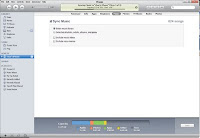
4. If you have automatically allowed sync (which you shouldn't) it will begin to sync immediately. Otherwise, right-click your name on the left menu in iTunes (see pic) and select "sync".
4. sync of music items (aka moving songs to your iPhone from your PC) is now happening (see pic)
6. when sync has finished (may take a while), unplug the iPhone
iPhone - copy photos and songs to PC
05.16.11: There are problems ensure no loss of photos and songs when you restore your iPhone (see previous item for details on backing up your iPhone).There are numerous methods of backing up your iPhone photos, depending on which operating system in on your PC.
Backing up your songs is not required, if you loaded them from your PC. Check my other item on how to load songs to your iPhone.
Mac users need read no further. This is for Windows users only.
Windows7:
1. right-click on your PC desktop and select New -> Folder and name it iPhone Pics (any name you prefer). This will create a folder on your desktop.
2. USB connect your iPhone and it will automatically show up in your Windows Explorer (see Chas's iPhone in pic)
3. open this folder and drag and drop the items to the folder you created
You now have copied all your iPhone photos to your computer.
Subscribe to:
Posts (Atom)


